
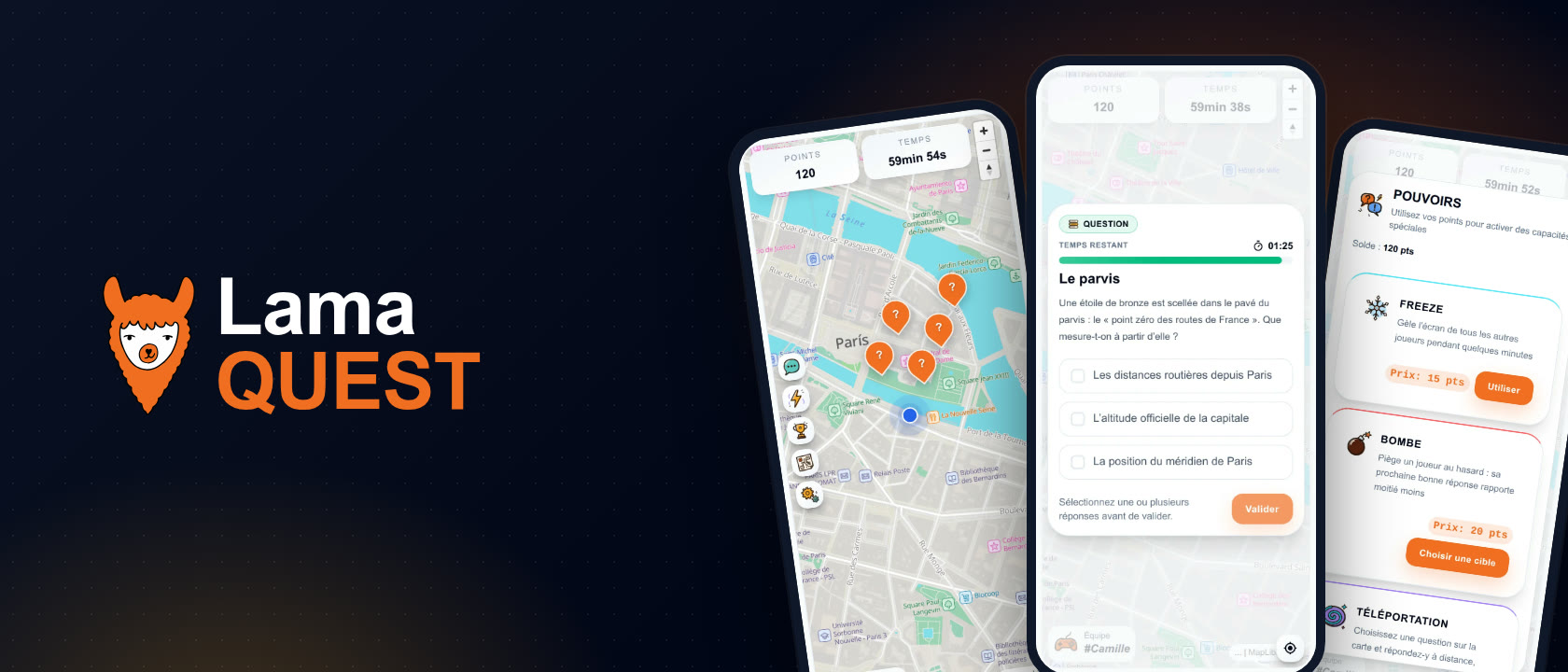
A smartphone scavenger hunt comes together in three steps: you write your questions, you place them on a map, then you launch a game that players join with a code, with no app to install. Here is each step in LamaQuest, with the real screens, from creating your account to the podium.
A GPS scavenger hunt is a course where each stop opens when the player reaches the right spot, located by the position of their phone. Allow an evening to prepare your first course, and one visit on site to check the answers.
- Before you start
- Write the questions
- Create the quiz
- Place the stops on the map
- Set up the game
- Add the powers
- Test the course
- Print the QR posters
- Launch the game
- Follow the game and wrap it up
- What a game costs
Before you start: an account, a computer, a place in mind
You prepare everything on a computer, from the LamaQuest dashboard. Creating your account gives you 3 free credits, enough for three people to play and to see the game run for real. Preparing and testing a course costs nothing: only players who enter a game use a credit.
Players only need a phone with a browser, iPhone or Android. Before opening the dashboard, decide on the place, the audience and the length: our guide to organising a scavenger hunt helps you settle them.
Step 1: write the question for each stop
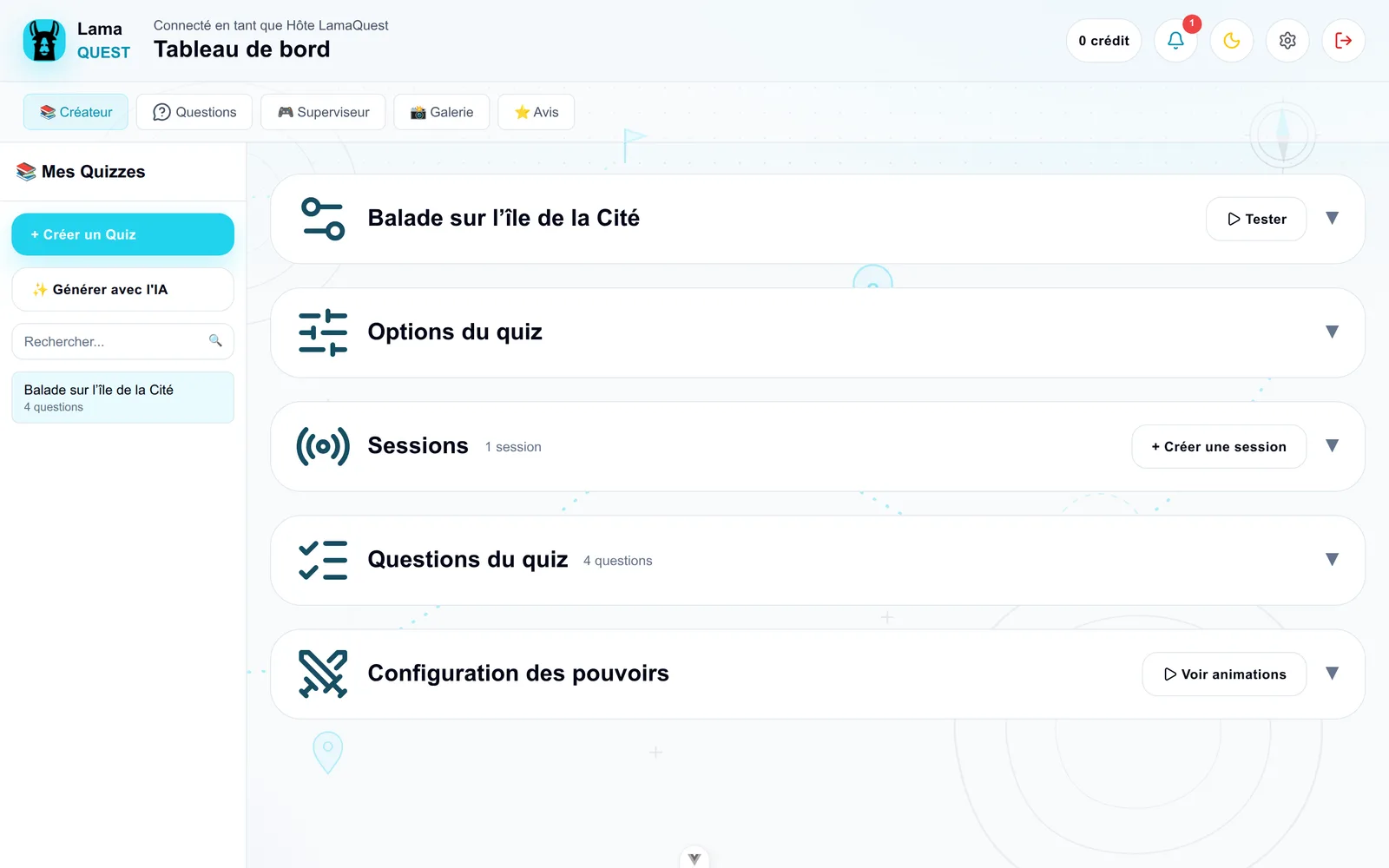
Questions are written in the “Questions” tab, before you place them on the map. They form your bank: the same question can be used in several courses. Click the create button, then fill in the form.
- Type: “Multiple choice question” for a choice of answers, “Open response” for an answer in text or as a photo that you approve during the game, “Information sheet” for a stop that tells a story without asking anything, “Treasure hunt” for a hidden object the player finds by following a compass.
- Title and Content: the title helps you find your way around, the content is what the player reads.
- Answers: type each answer and press Enter, then tick the correct one or ones.
- Points awarded and Time limit: left empty, there is no time limit.
- Message after answering: the story the player reads right after answering.
A good scavenger hunt question can only be answered on the spot: the number of windows on a facade, the date carved above a door, a detail of a statue. A general knowledge question can be asked from a sofa, so it doesn’t justify walking to the stop. Keep general knowledge for the duels, which draw it from a built-in catalogue.
Step 2: create the quiz that holds the course
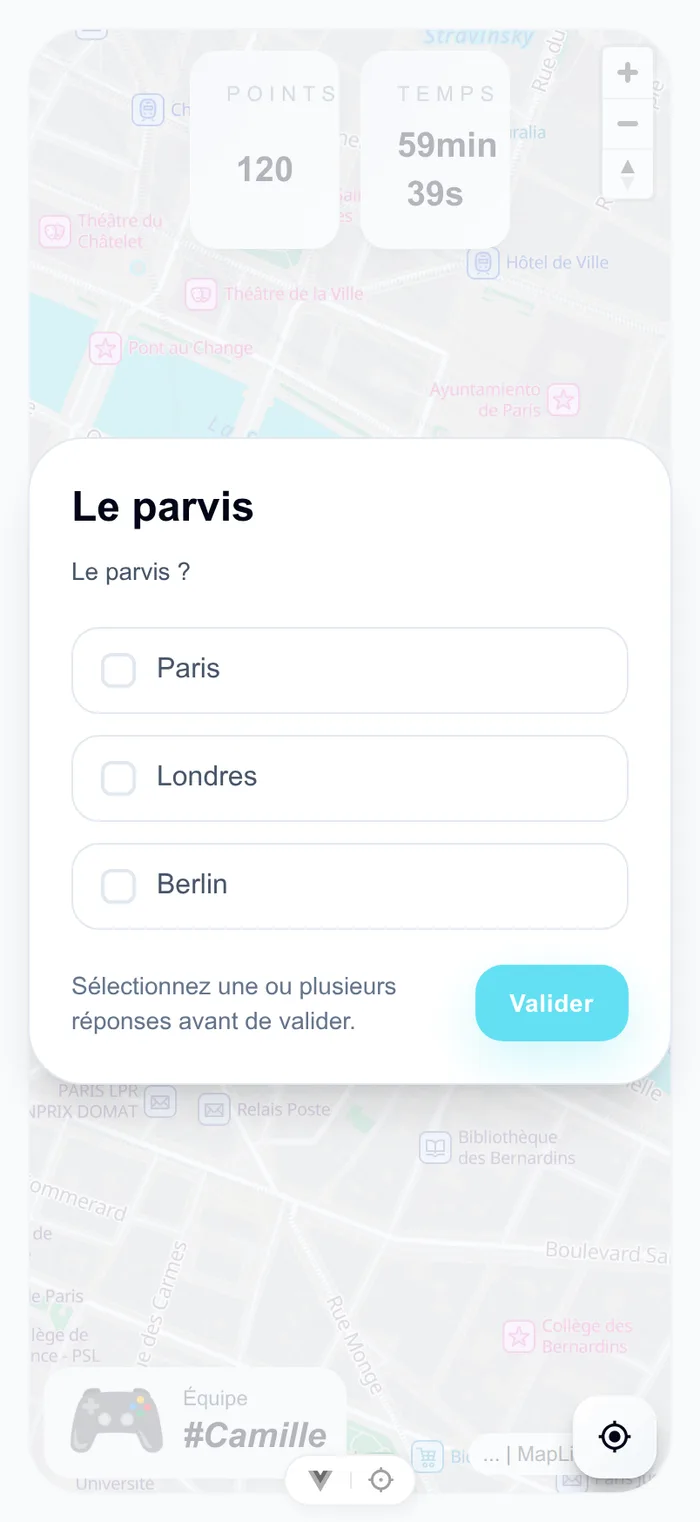
In LamaQuest, a course is called a quiz. In the “Creator” tab, click “+ Create a Quiz”. If you are asked how, choose “Create it myself”. The form asks for:
- the title and a description;
- the quiz time limit, in minutes: when the clock runs out, the game stops for everyone;
- the quiz mode: “Free”, players do the stops in any order, or “In order”, they follow them like a trail;
- the starting position of the map, centred on your playing area.
For the length, allow ten to fifteen minutes per stop, walking and thinking included: five to seven stops for one hour, seven to ten for two hours.
Step 3: place the stops on the map
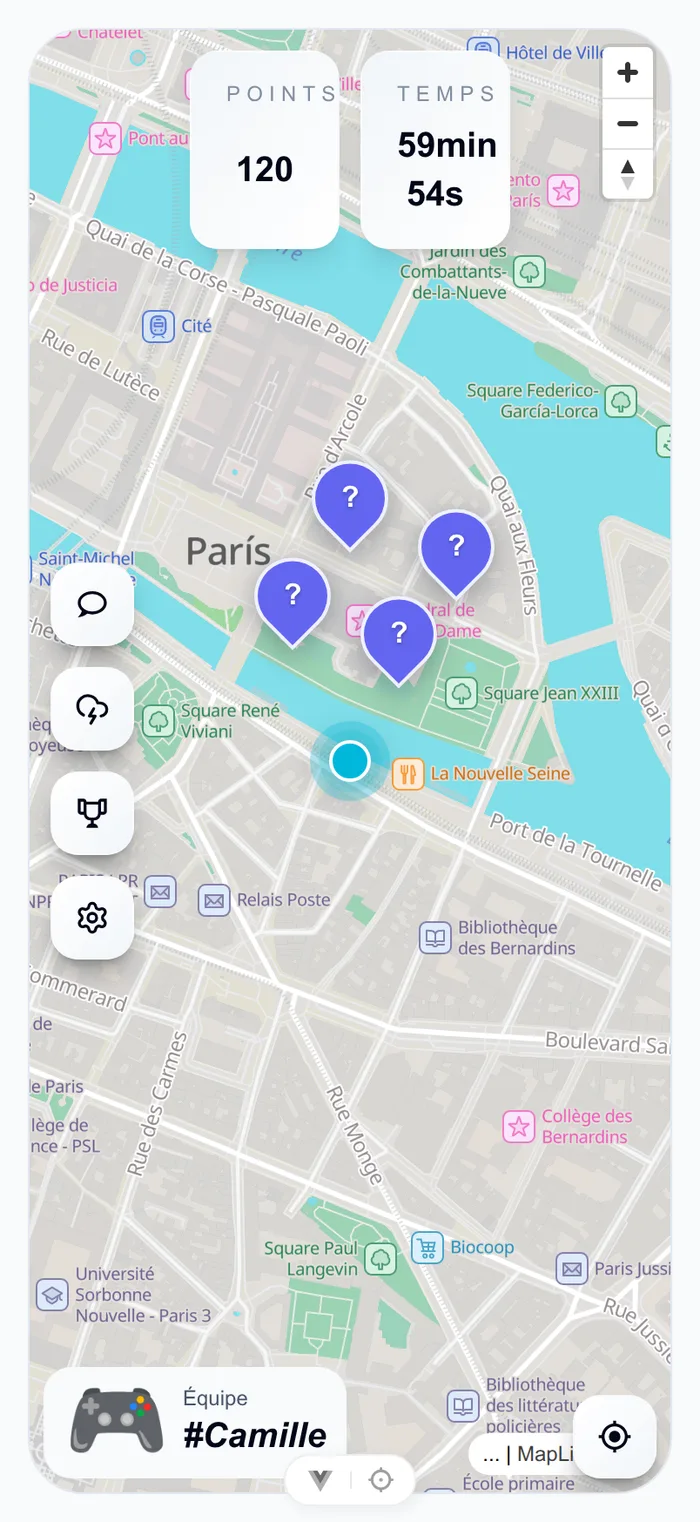
Each stop is a point on the map, and each point carries a question. In the “Quiz questions” panel, pick a question in “Add a question to the map”. The “Place the question” form opens:
- Unlock radius: the circle, in metres, inside which the question opens by itself when the player walks in.
- How this point opens: “On arrival (GPS)”, “By scanning the QR code”, or “GPS or QR code”, the fallback for when GPS struggles, under arcades or indoors.
- Reveal condition: “Immediate”, “After the previous one”, “After X answered questions” or “After X seconds”. The questions table also offers “When nearby”, where the stop only appears as players get close, and “Manual”, where you reveal it yourself during the game.
- Points awarded in this quiz: to change the question’s value in this course only.
Click “Create point”, then double-click the point to move it right in front of the facade or statue that holds the answer. Change the order of the stops by dragging the rows of the “Quiz questions” panel.
Step 4: set up the game in the quiz options
The “Quiz options” panel sets the mood. The settings that matter most for a first game:
- Players visible on the map: everyone sees the others move in real time. More of a race, fewer surprises.
- Start and end of game messages: the instructions at the start, and the final word.
- Final question: a bonus question asked to everyone when the clock stops, which can turn the leaderboard upside down.
- Proximity duels: when two players cross paths, their phones offer them a timed general knowledge duel. Choose the players’ age and the difficulty, and LamaQuest works out the rest.
Step 5: add powers to spice up the game
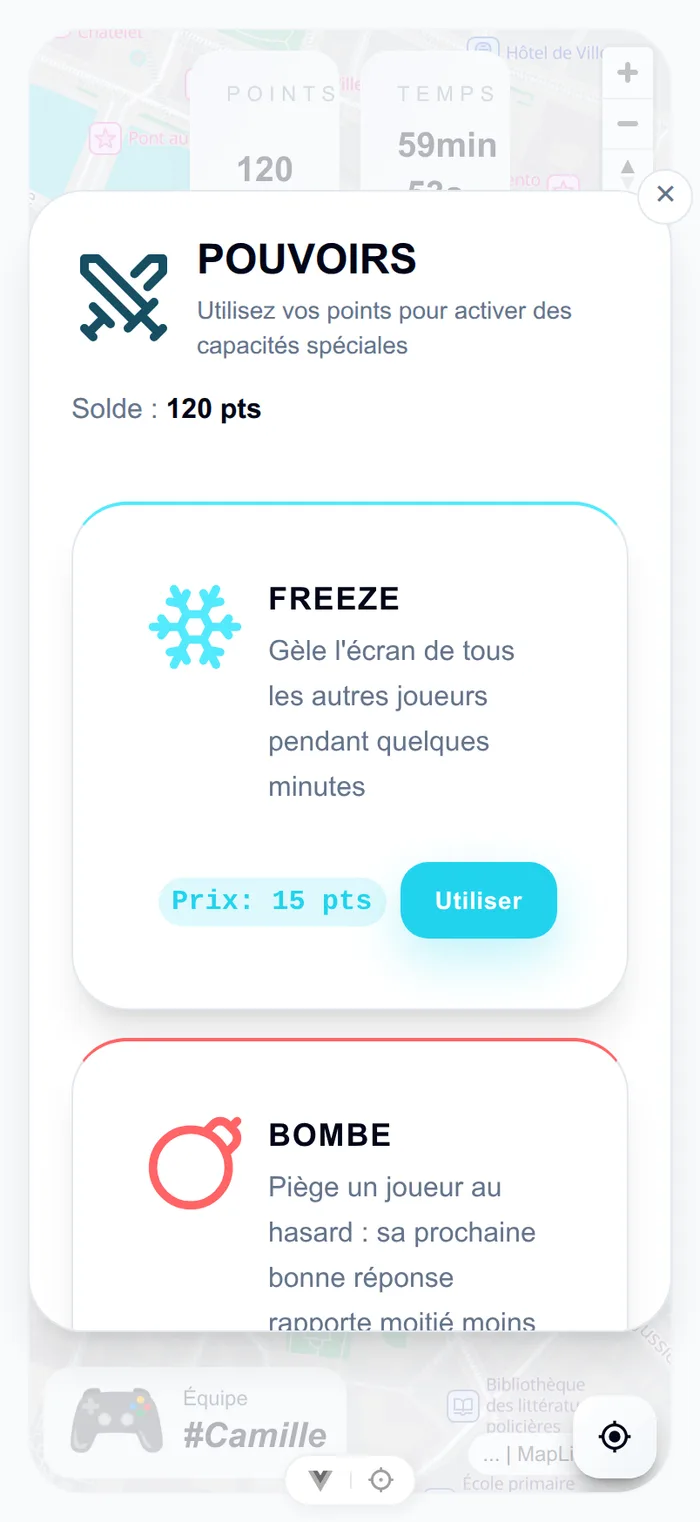
Powers turn a string of questions into a game people talk about the next day. Players earn points by answering, then spend them to get in each other’s way: freeze every opponent’s screen, take points from one player to give them to another, bet it all on a roulette. There are nine of them, described on the powers page.
In “Powers configuration”, switch on the ones you want, set their “Cost in points”, then click “Save”. The “View animations” button shows what players will see.
Step 6: test the course before the day
This is the step almost everyone skips, and the most useful one. The “Test” button plays your course with simulated players, from your desk: you see the stops follow one another and the leaderboard move, without spending a credit.
Then walk the course yourself, at a player’s pace, stopwatch in hand. You will find the ambiguous question, the stop that is too far, or the plaque that has been moved before your players run into it.
Step 7: print the QR posters, if your stops use them
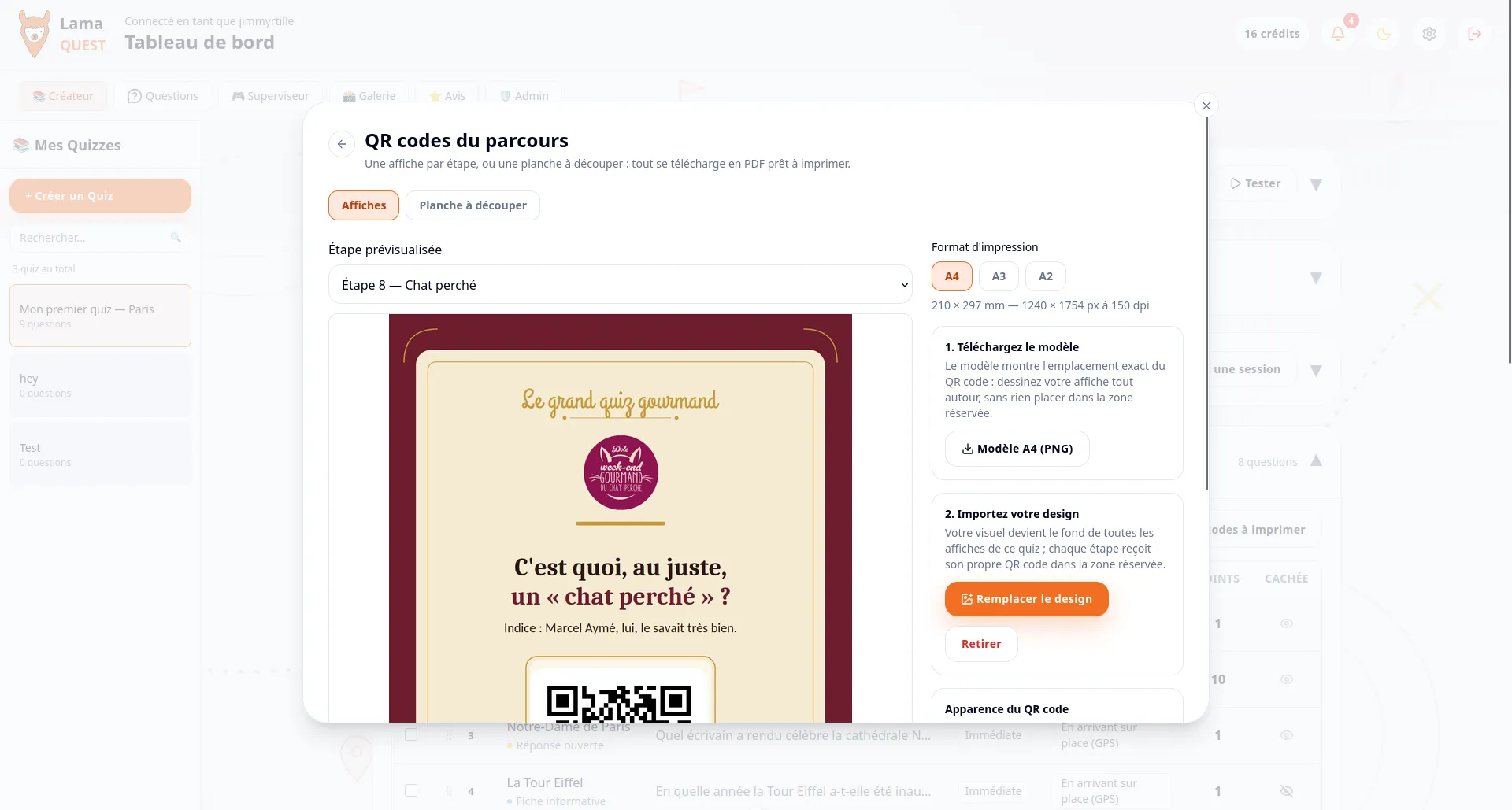
A stop that opens with a QR code needs its poster. The “QR codes to print” button gathers those of the course. In “Posters” mode, you set your own design as the background, place the QR code, which snaps to the guides of your image, write a text for each stop, then download all the posters as a single PDF, in A4, A3 or A2.
Step 8: launch the game and let players in
A game is called a session. In the “Sessions” panel of your quiz, click “+ Create a session”. Three settings:
- Game language, if your quiz exists in several languages: all players play in this one, and you can change it during the game.
- Schedule the launch: the game starts on its own at the chosen time.
- Self-service: for a permanent course with no host, open responses are then approved automatically.
The session gives you a game code and a QR code, with an invite link to copy. Players scan or type the code, choose a nickname and an avatar, and wait in the lobby. When everyone is there, open the “Supervisor” tab and click “Launch the game”.
Plan a five-minute briefing before launching: the goal of the game, the limits of the area, the time to be back and your phone number.
Step 9: follow the game live, then wrap it up
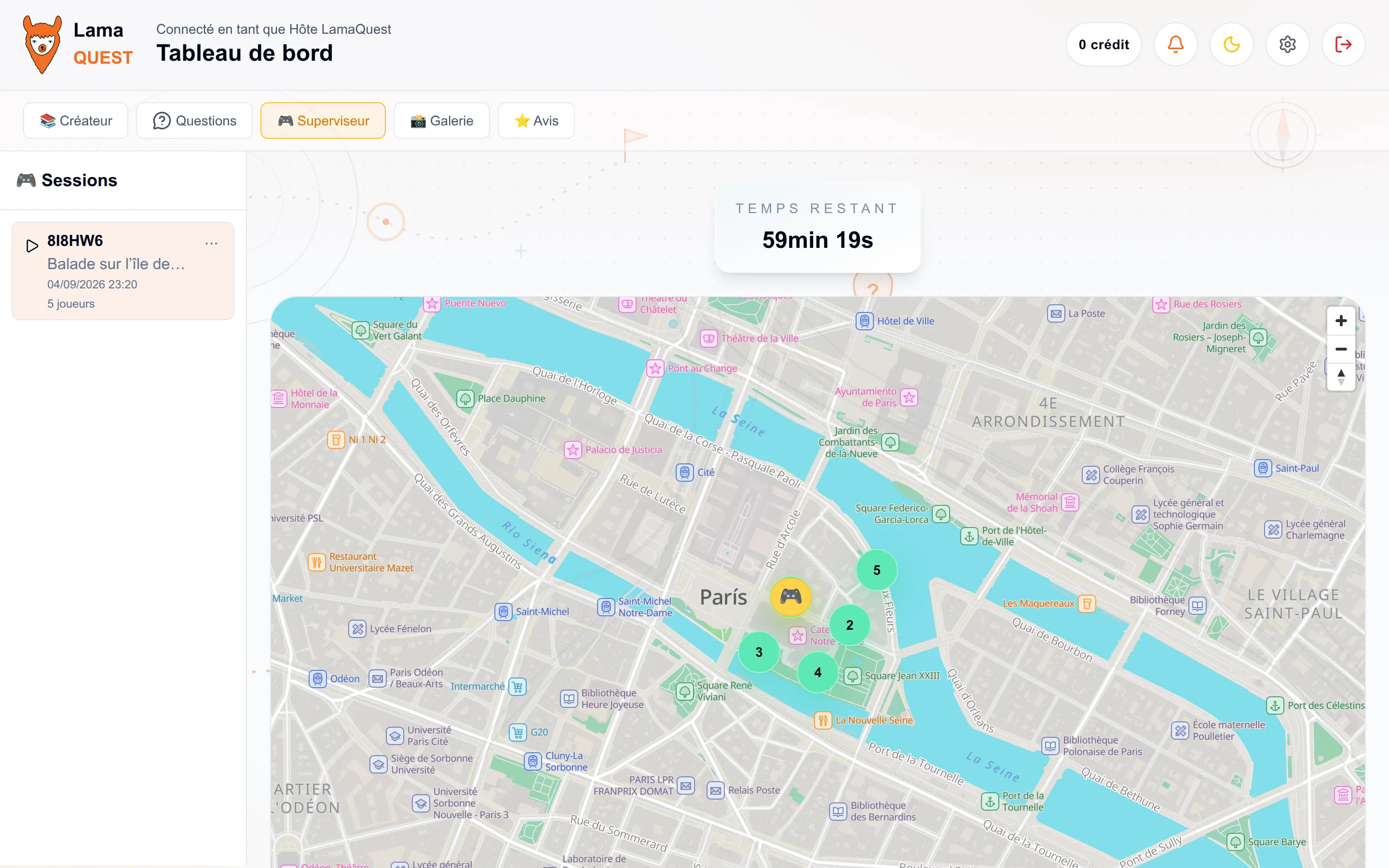
During the game, the Supervisor shows you everything: each player on the map, the photos and open responses to approve, the leaderboard. You can message a player, for instance to send a hint to a team going round in circles.
When the clock runs out, every phone shows the end of the game: the podium, “The race”, which replays how the scores evolved in eight seconds, then the trophies, such as the greatest walker or the best duellist. After the game, the “Gallery” tab keeps the photos, ready to download, and the “Reviews” tab collects players’ feedback. The course itself stays ready for the next session.
What a game costs: one credit per player
One credit lets one player, that is one phone, into one game. There is no subscription, credits never expire, and a team playing on a single phone only uses one credit. The price of a credit depends on how many you buy, from 20:
| Credits bought | Price per credit |
|---|---|
| 20 to 99 | €8 |
| 100 to 499 | €7.50 |
| 500 to 999 | €7 |
| 1,000 and more | €6.50 |
For a 25-person seminar where everyone plays on their own phone: 25 credits at €8, so €200. VAT is not applicable (article 293 B of the French Tax Code): the price shown is the price you pay. A player your balance doesn’t cover is never turned away: they wait in a waiting room and come in as soon as you top up. The details are on the pricing page.
Frequently asked questions
Do players need to install an app?
No. Players open the invite link or scan the game’s QR code in their phone’s browser, choose a nickname and play. They don’t create an account or download an app. On Android, Chrome gives the most accurate position.
How long does it take to create a scavenger hunt?
Allow a few hours to write the questions for a two-hour course, plus one visit on site to check the answers and time the walk. Entering it in LamaQuest is the quickest part. A finished course can then be reused for every new session.
Can you run a scavenger hunt indoors or where GPS is weak?
Yes. Set those stops to “By scanning the QR code” and print their posters: the player scans the poster and the question opens, regardless of GPS. “GPS or QR code” keeps both, which helps under arcades or in a courtyard.
Can a team play on a single phone?
Yes, and it is often the most fun: the team shares one phone, picks one nickname and only uses one credit. For everyone to play on their own phone with a shared score, create teams from the Supervisor: players pick theirs in the lobby.
Can a course be reused for another group?
Yes. A quiz keeps its stops, options and powers: just create a new session for each group. To adapt a course without touching the original, duplicate it, with or without its stops.
Your account starts with 3 free credits: enough to build your first course tonight and play it this weekend.
Ready to turn your town into a playground?
Build your first course for free. Your players are only waiting for the code.
No credit card required